


FSU Learn: How to connect Parchment Digital Badges to Canvas
Last updated: Jul 01, 2026
778
views

Connecting Parchment to Canvas
- Reach out to your ODL administrator to install Parchment Digital Badges in your course.
- Once your administrator has confirmed access, log into your FSU Learn Canvas course.
-
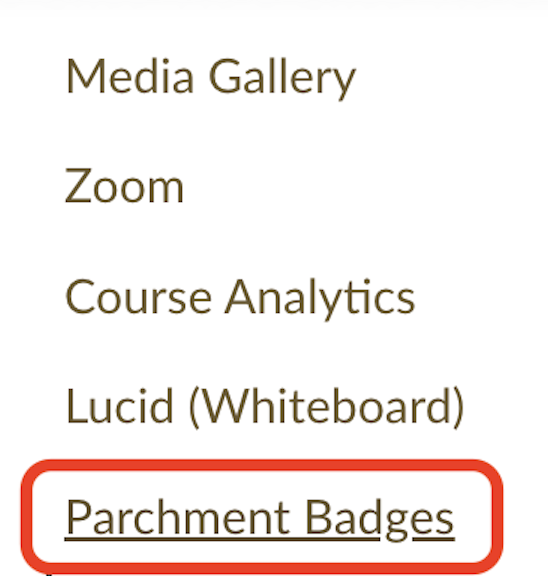
On the left-hand course navigation, select Parchment Badges.
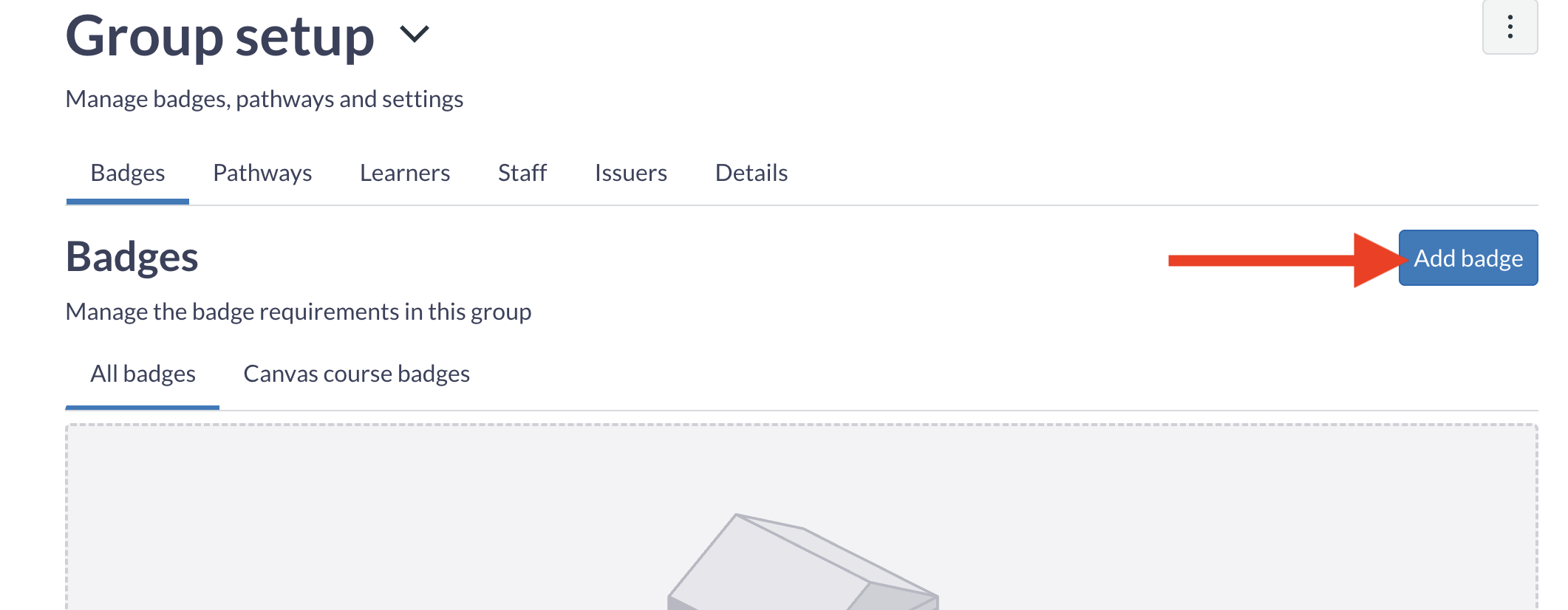
You'll now add the badge to your course. Select Add Badge
-
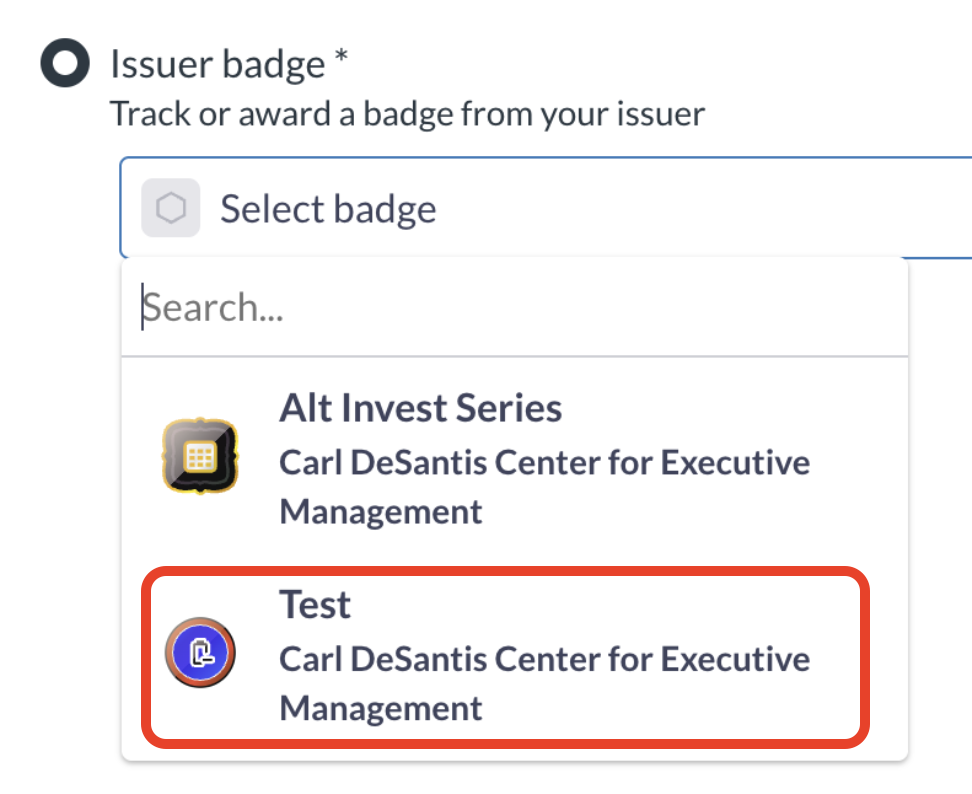
From the Issuer dropdown menu, select your badge.
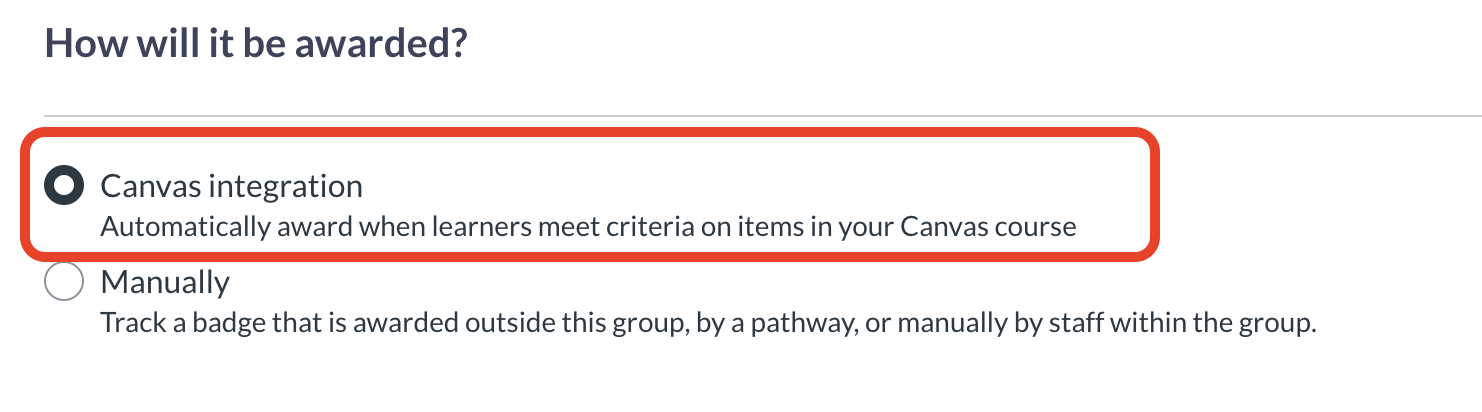
Select Canvas Integration.
-
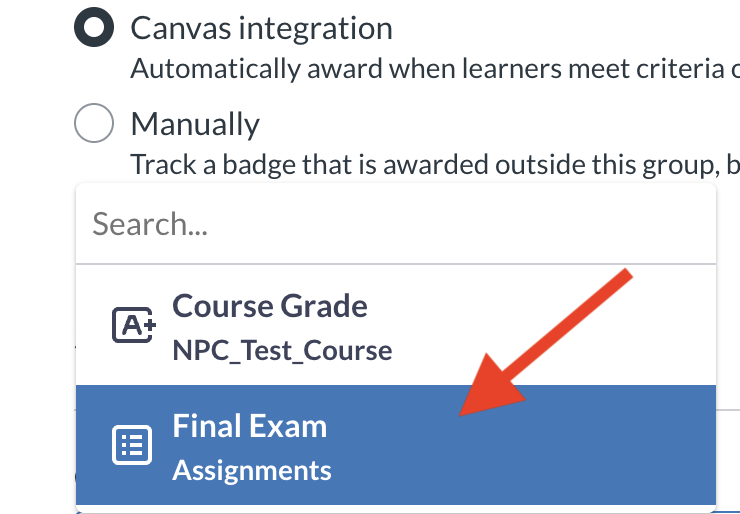
Specify the requirements for awarding of the badge. This can be a specific course assignment, or the overall course grade.
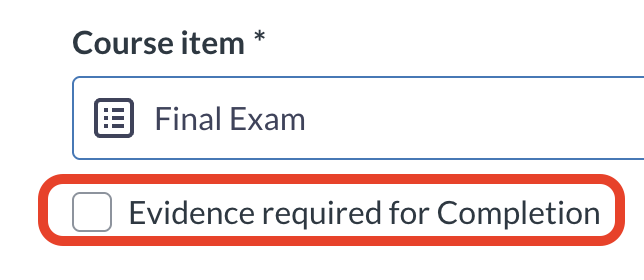
Note: Do not check the box that says Evidence required for Completion if you want the badge awarded automatically. This triggers a manual award process.
-
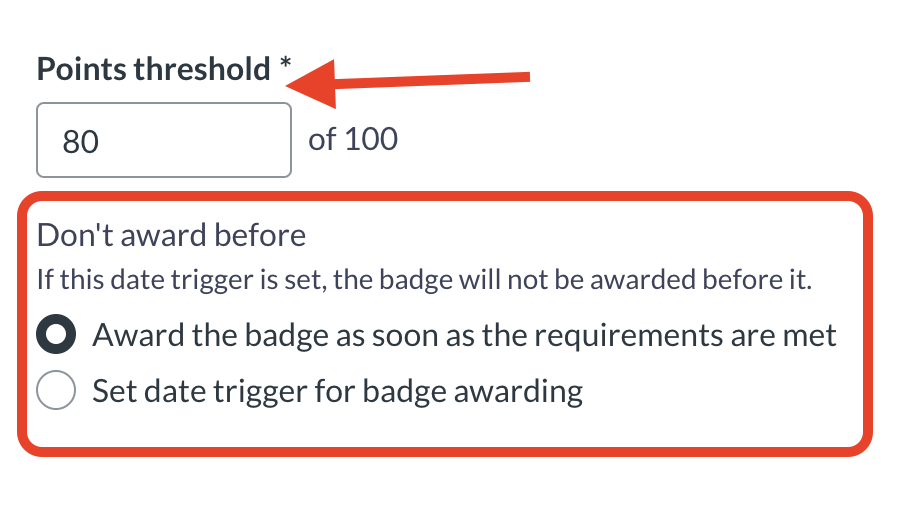
Set the points threshold for awarding and select from the two options regarding the time of badge awarding.
-
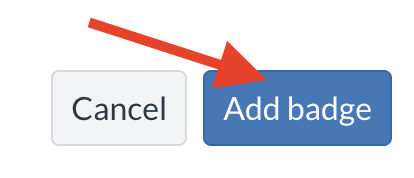
Add the badge.
- The badge is now tied to the requirement! If you experience any further issues, please contact your ODL administrator.











