Adding Custom Links in Course Navigation

Aug 03, 2026
 7
7
In this article:
Adding Custom Links
Additional Resources
Canvas has recently added the ability to create custom links for the Course Navigation within your Course Site. These links can be items inside and outside of Canvas.
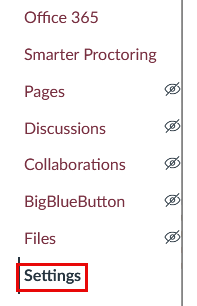
- Open Settings
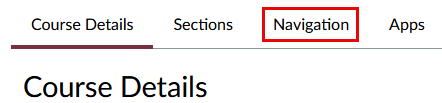
- Navigate to Navigation at the top of the page
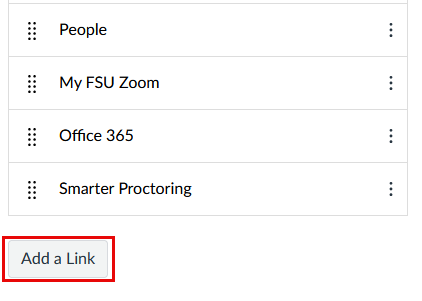
- Select Add a Link from the list of items
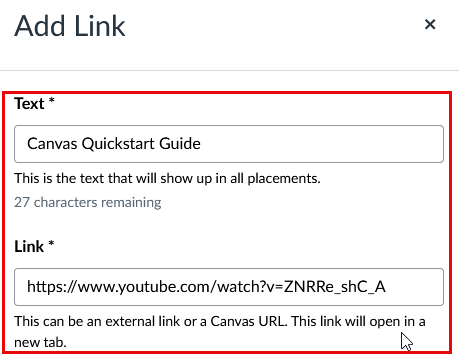
- Enter a name for the link under Text, and insert the link under Link
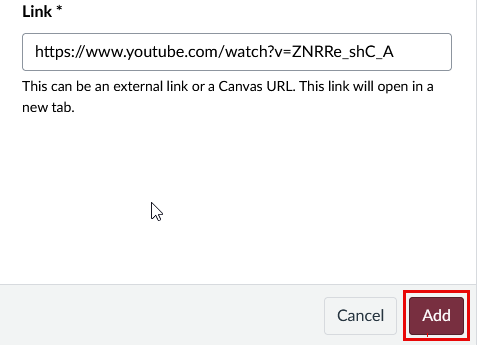
- Select Add
- This will create a new link in the Course Navigation with the name that was entered
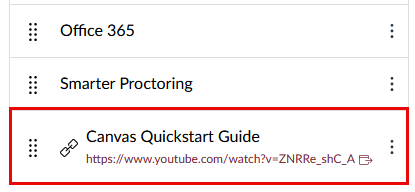
- Select Save to keep the addition. It will now appear in the Course Navigation
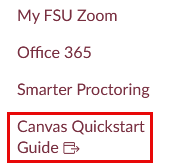
These links can be enabled or disabled, rearranged, and otherwise treated like all other Course Navigation options.
If you encounter any issues, you may also refer to the Instructure guide on adding custom links to Course Navigation.