


Instructors: How to install Lucid in your Canvas Course

Last updated: Jul 01, 2026
775
views

How to install Lucid in your Canvas Course
-
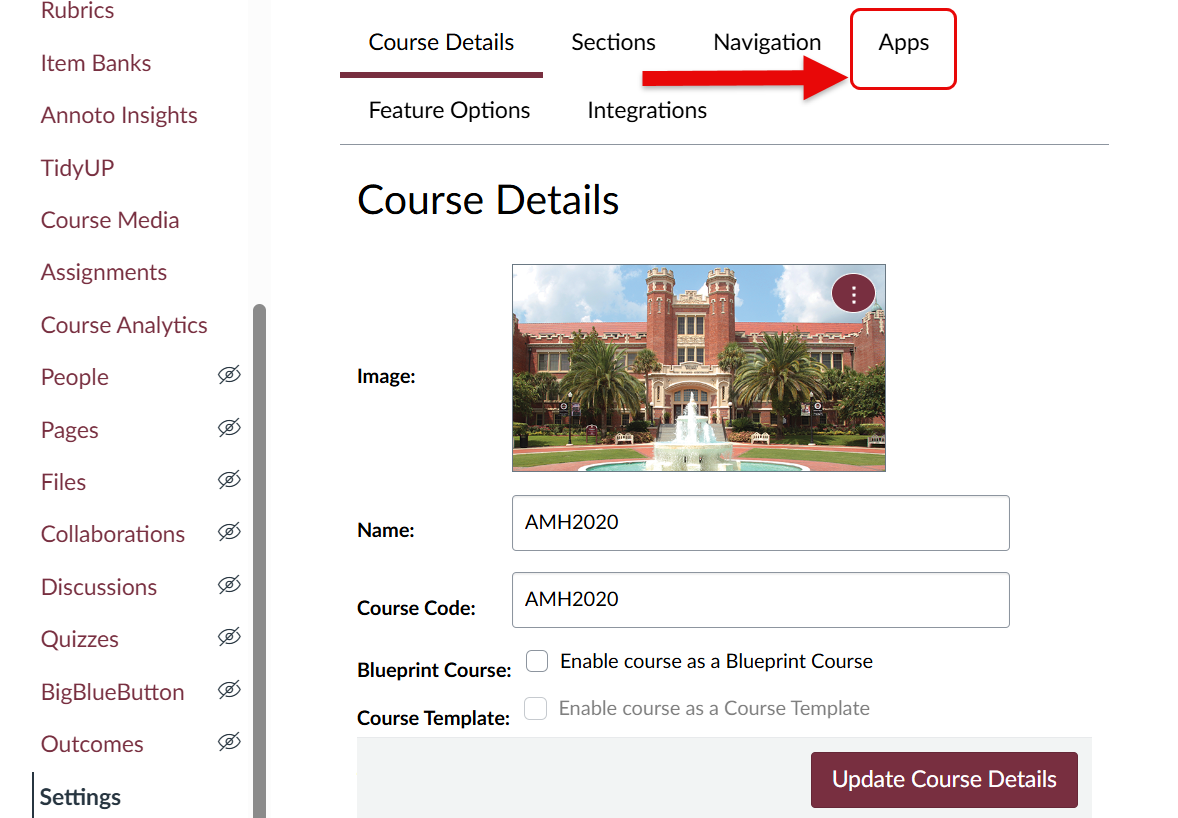
Navigate to your Course Settings and select the Apps tab.
-
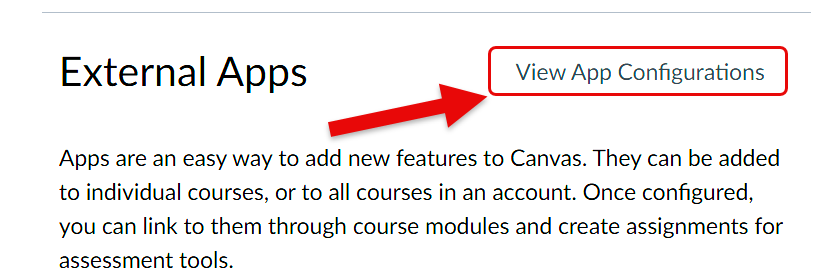
In the Apps tab, select View App Configurations.
-
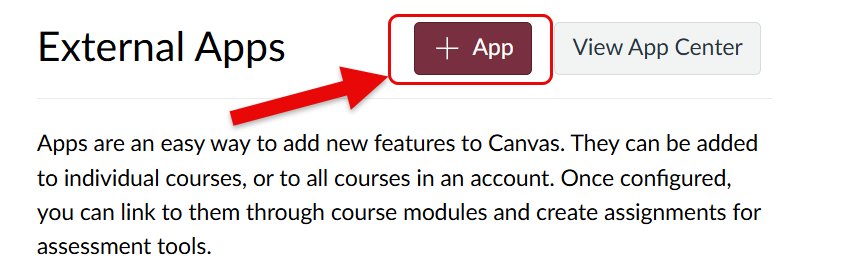
Select +App.
-
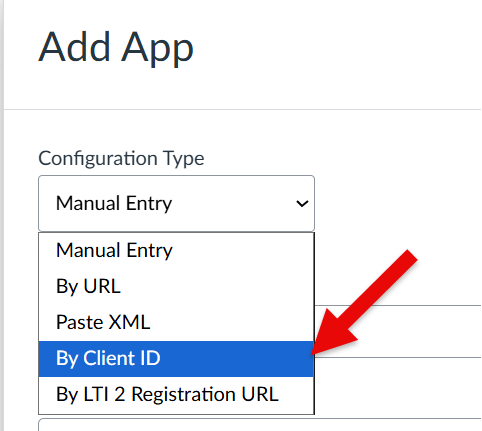
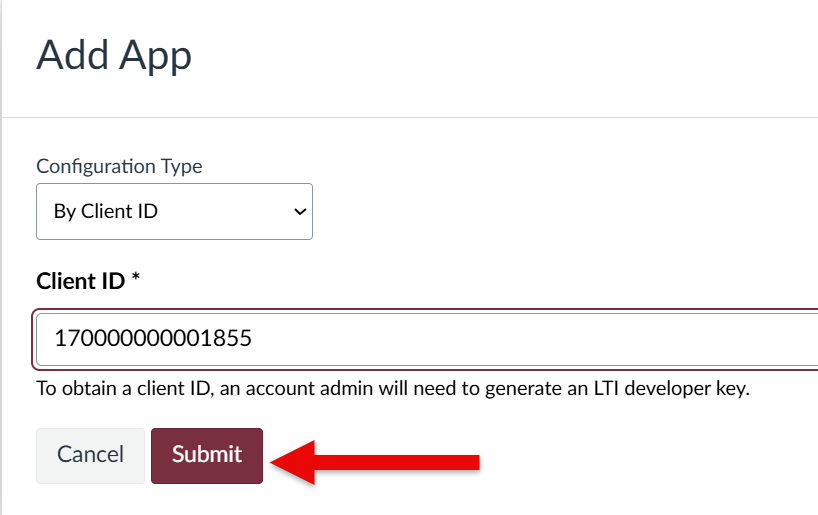
Under the Configuration Type dropdown menu, select By Client ID.
-
Paste the following Client ID into the text bar: 170000000001855 and select Submit.
-
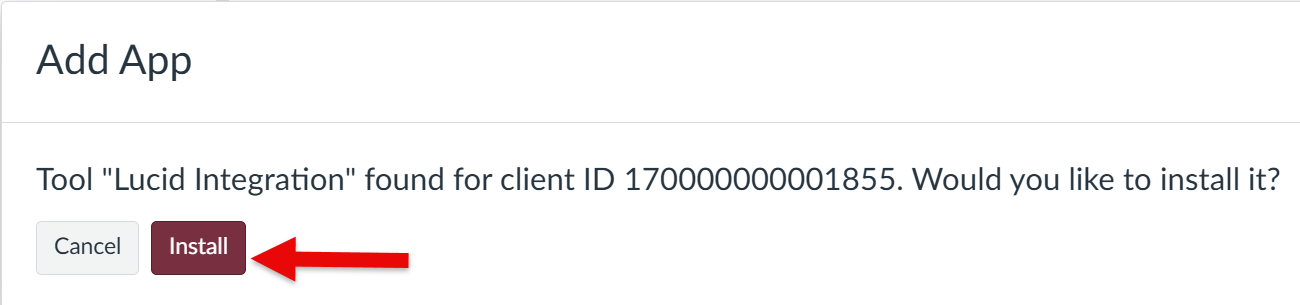
Once the Client ID is verified, select Install.
-
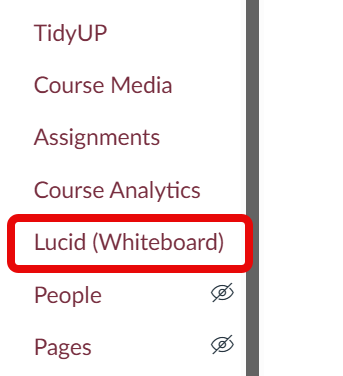
Refresh the page, and you will now see Lucid (Whiteboard) appearing in your left-hand course navigation as visible to teachers and students.
-
Visibility can be changed in the Navigation tab in your Course Settings.











