380
380
Report Administrator Role
The Report administrator role in Simple Syllabus will be able to view and utilize the Reports page without having access to other administrative privileges. The role is limited to viewing syllabi and viewing or generating custom reports. They will not have access to edit syllabi, manage the account structure, or provision users. The options in the left-hand navigation will be Syllabus Library and Reports. Watch our Report Admin Training video for additional information on the topics below.
Reports Page
Click Reports from the left-side navigation bar to view reports.
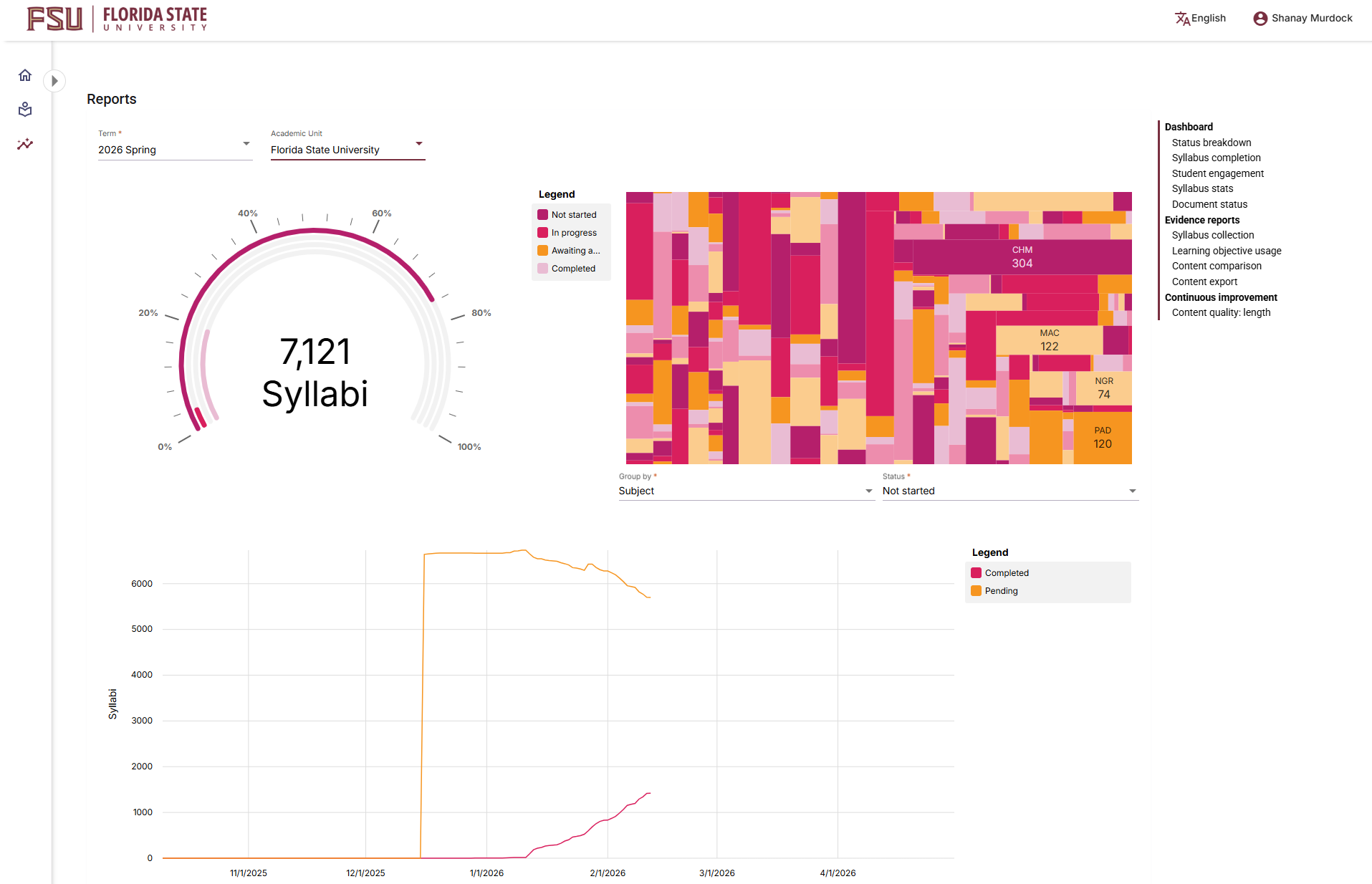
The Reports page will display a dashboard-style breakdown of the syllabus library, with options to filter by Term and Academic unit. You can then drill down further by selecting Group by and Status to see the completion status of syllabi in a particular college, department, or subject.
Applying these filters will adjust the data visualizations in the provided charts. One of the first things to do when preparing to generate a report is to filter the data by Academic unit by using the dropdown arrow, so you'll only get data relevant to your College and/or Department.
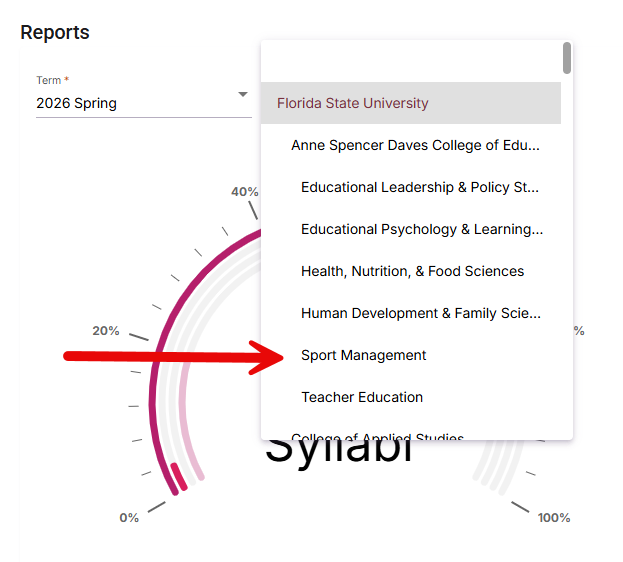
You can use the Status dropdown filter on the dashboard to display syllabi that are in progress, not started, awaiting approval, or completed. Alternatively, when using the document status report (see below) to identify incomplete or missing syllabi, you can either adjust filters when generating the report or filter the data after the report is exported.
Further down this page, you can select different report types with varying levels of customization. These include Document Status Report, Syllabus collection, Learning objective usage, Content comparison, Content export, and Content quality: length. Each of these reports outlines the use case in the report description.
Document Status Report
Note: Use the Document Status Report to gather the status of syllabi within your unit before the submission deadline.
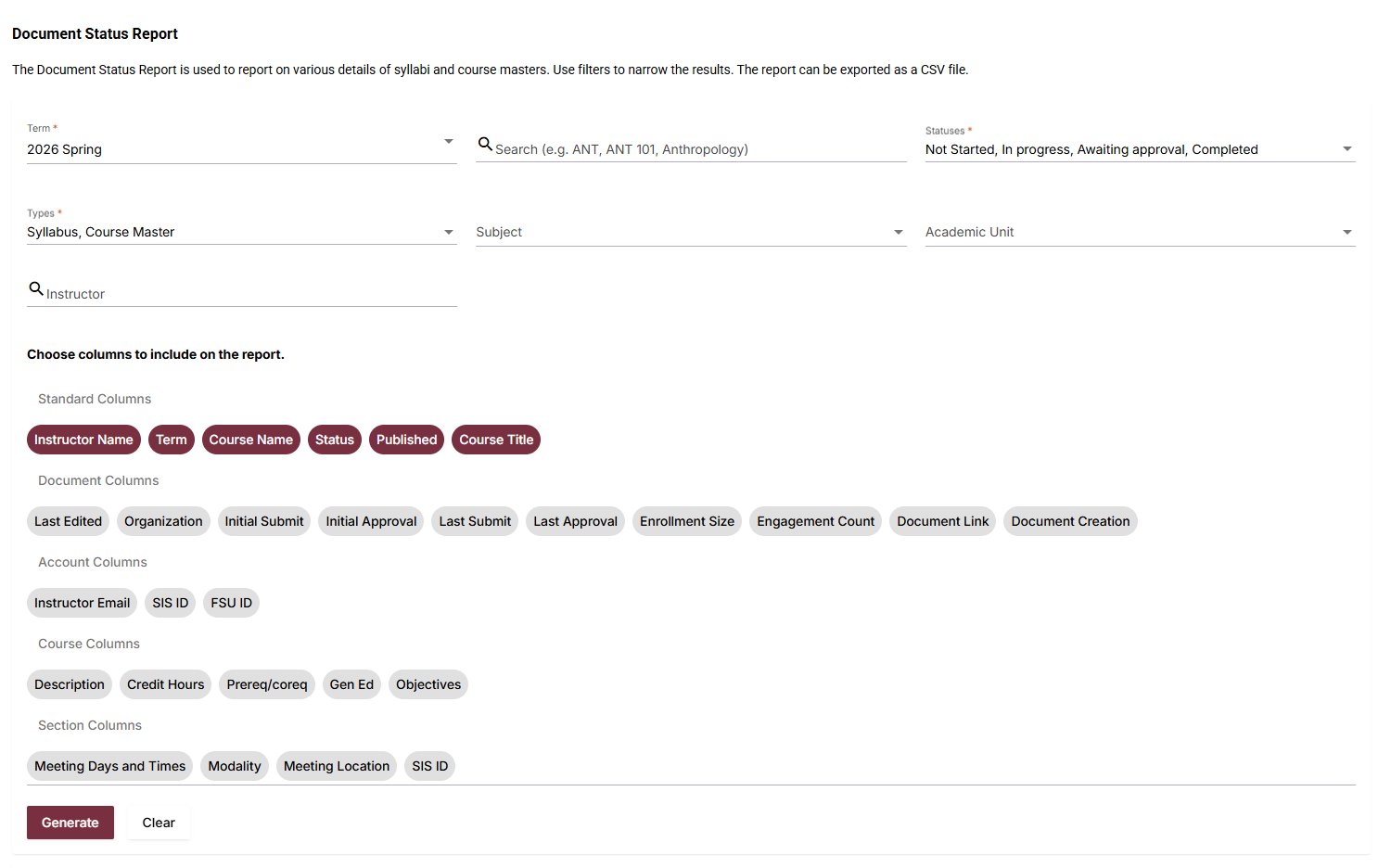
The Document Status Report is a dynamic report used to gather data on various selected details regarding syllabi. The top section outlines where and when you want the data pulled from, and the bottom section allows you to select what columns you would like included in your report. Select Generate to generate the report.
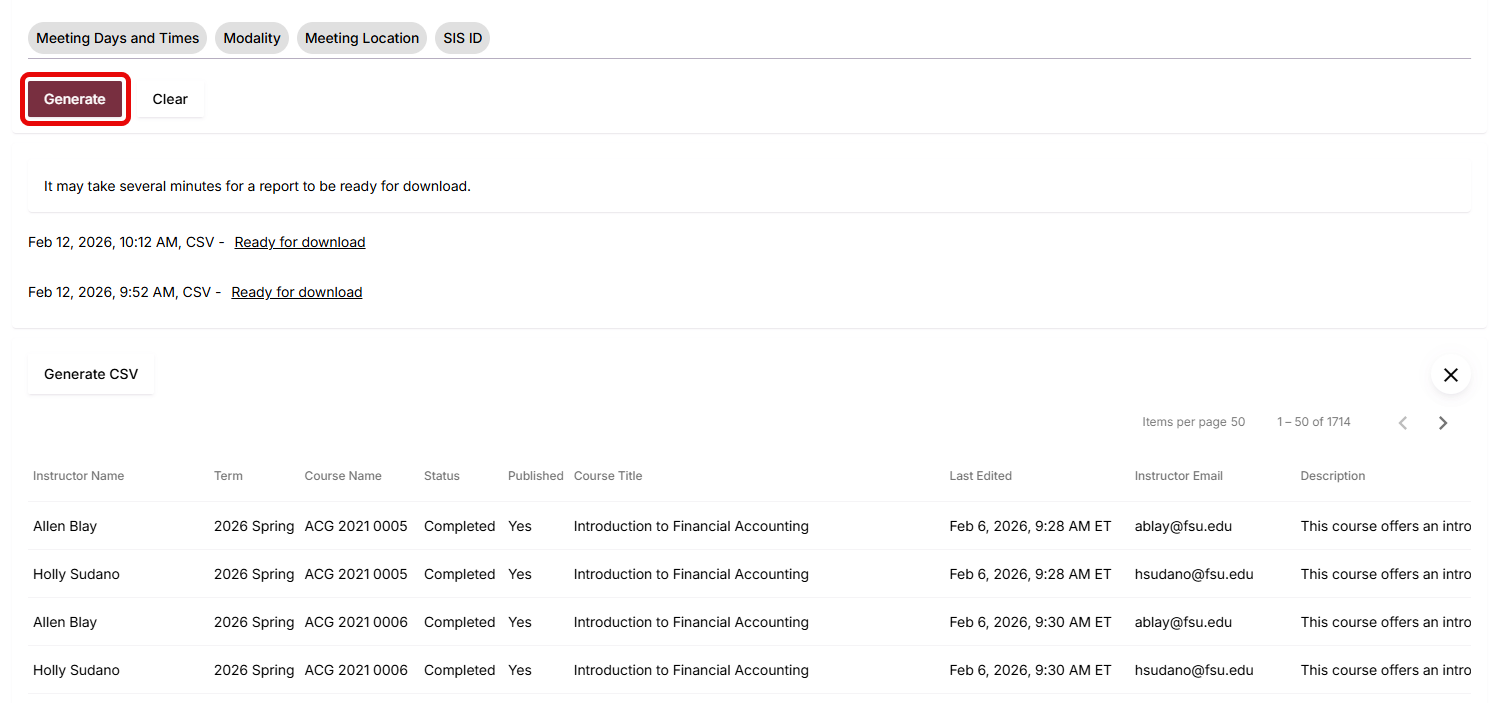
Note: Once you generate the report, the results will appear beneath the criterion block and can be downloaded as a CSV file, with some reports also available as PDFs.
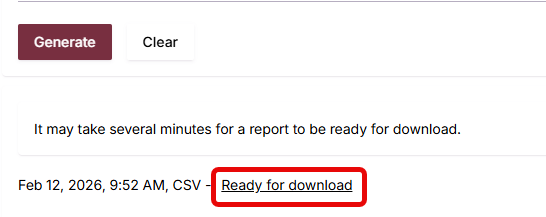
Generated reports do not automatically download. Click the Ready for download link that appears next to the report statistics to download.
Syllabus Collection
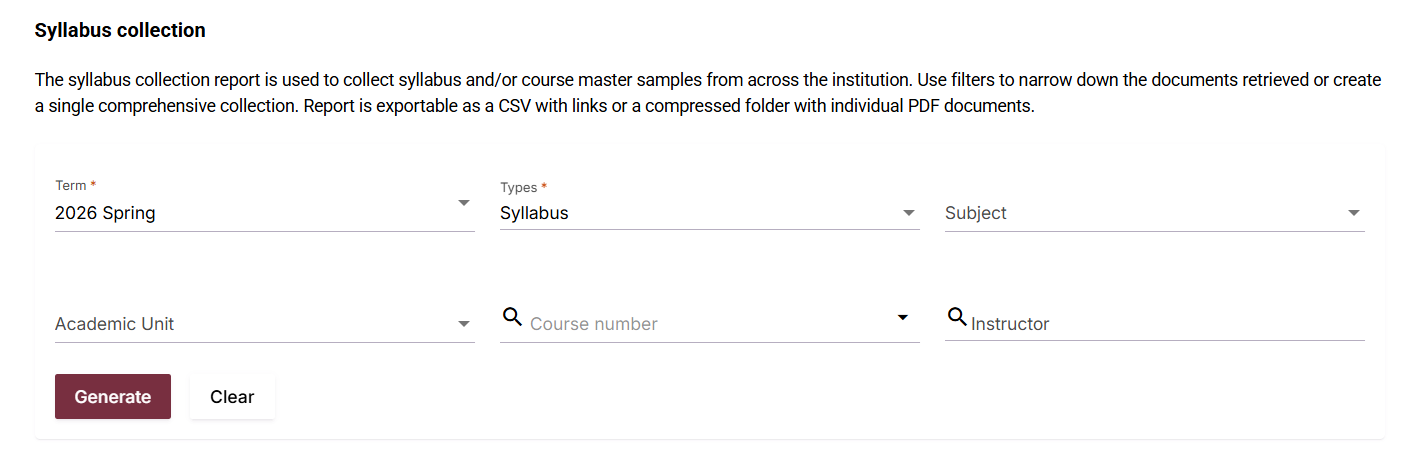
The Syllabus Collection report is used to collect syllabus samples from across the institution. Use filters to narrow the retrieved documents or create a single comprehensive collection. The report can be exported as a CSV file with links or as a compressed folder containing individual PDF documents. Select generate to generate a report on this and all other reports.
Note: This report will not be available based on FSU's configuration with Simple Syllabus.
Learning Objective Usage
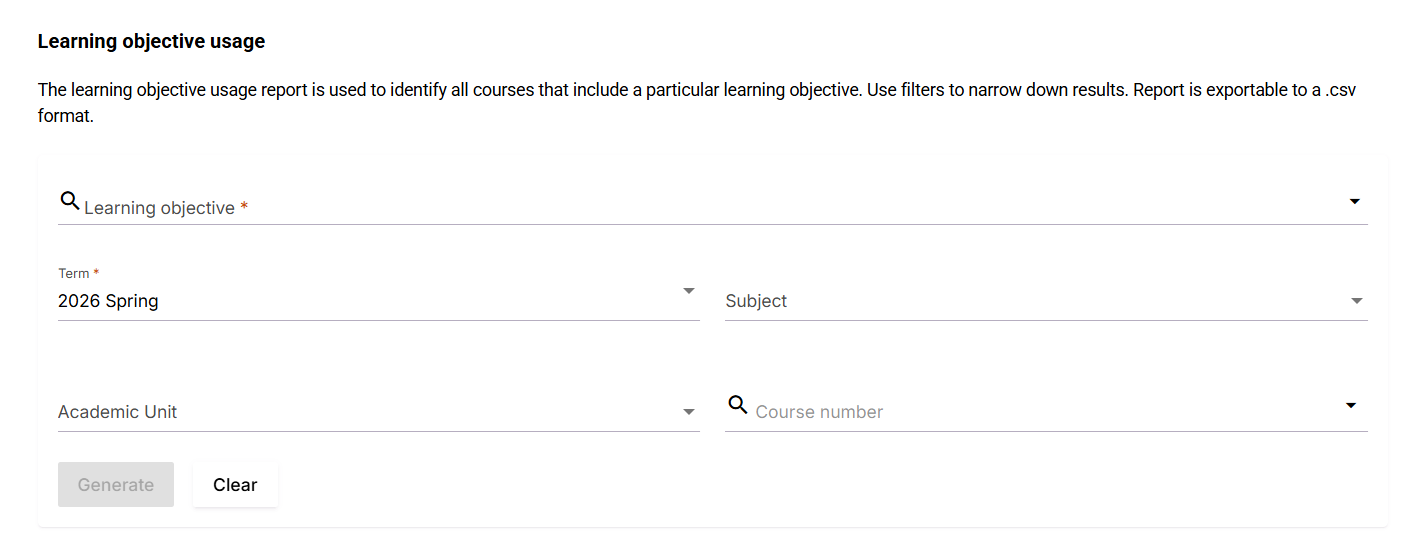
The Learning Objective Usage report is used to identify all courses that include a particular learning objective. Use filters to narrow down results. The report is exportable to a CSV format.
Note: This report will not be available based on FSU's configuration with Simple Syllabus.
Content Comparison
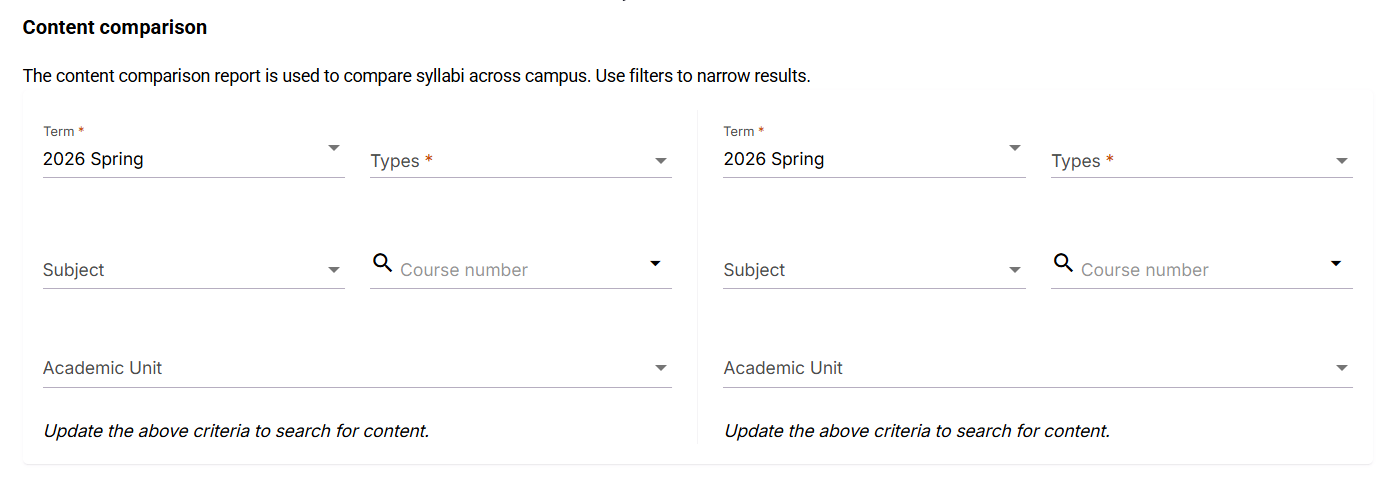
The Content comparison report is used to compare syllabi across campus. Use filters to narrow results.
Content export
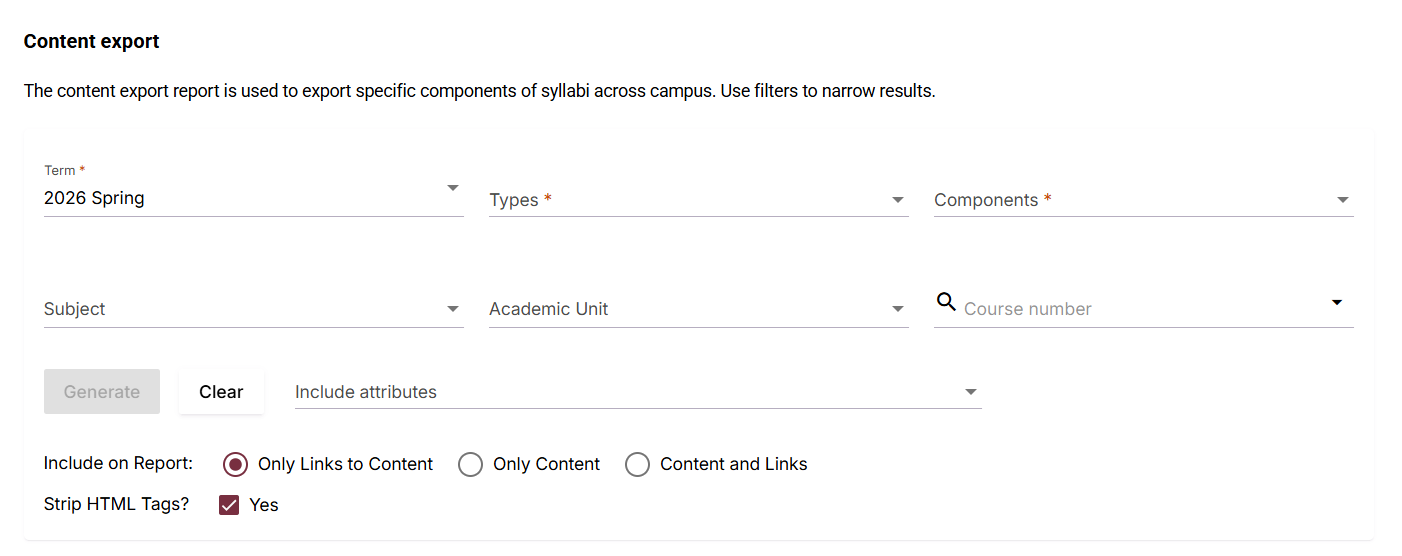
The Content export report is used to export specific components of syllabi across campus. Use filters to narrow results.
Content quality: length
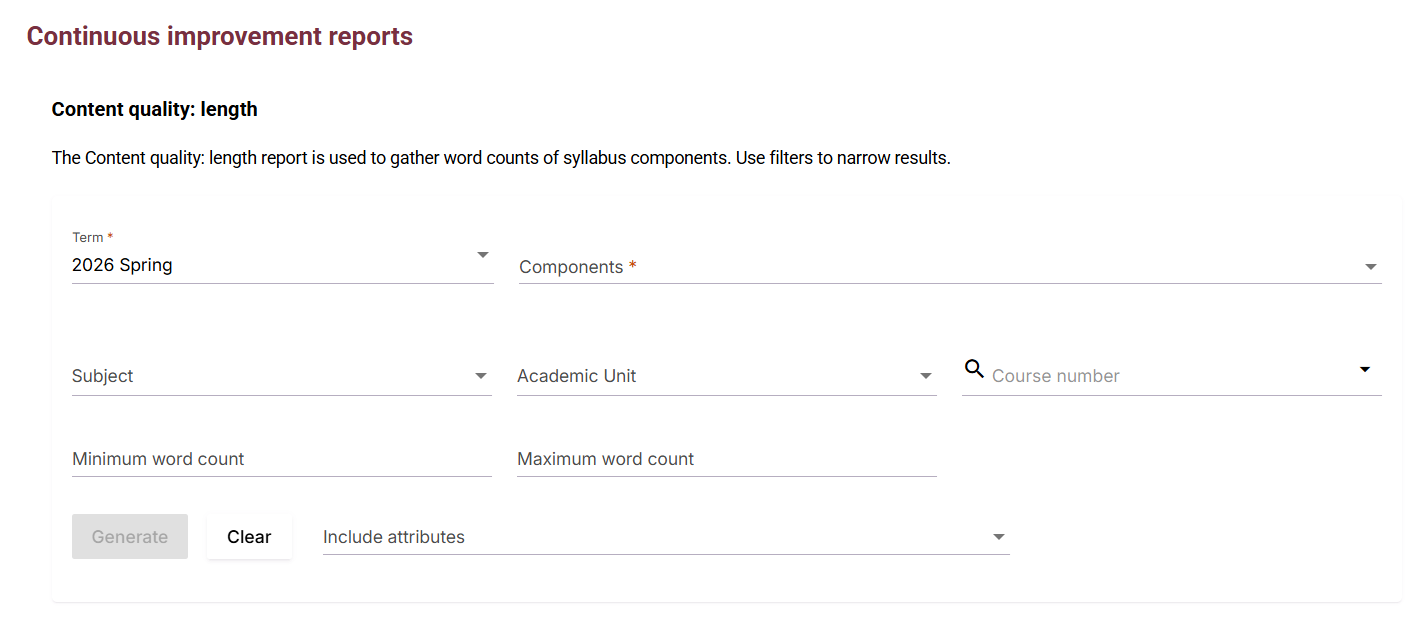
The Content quality: length report is used to gather word counts of syllabus components. Use filters to narrow results.
Note: This report will not be available based on FSU's configuration with Simple Syllabus.