


Adding Links to Canvas Pages

Dec 03, 2025
 484
484
This guide will cover how to add links to a Canvas page. See below to jump to specific sections:
Course Links- Canvas Content
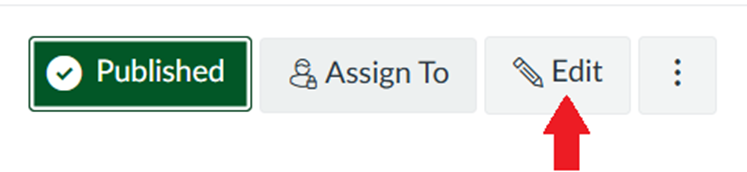
- Select Edit on the Canvas page.
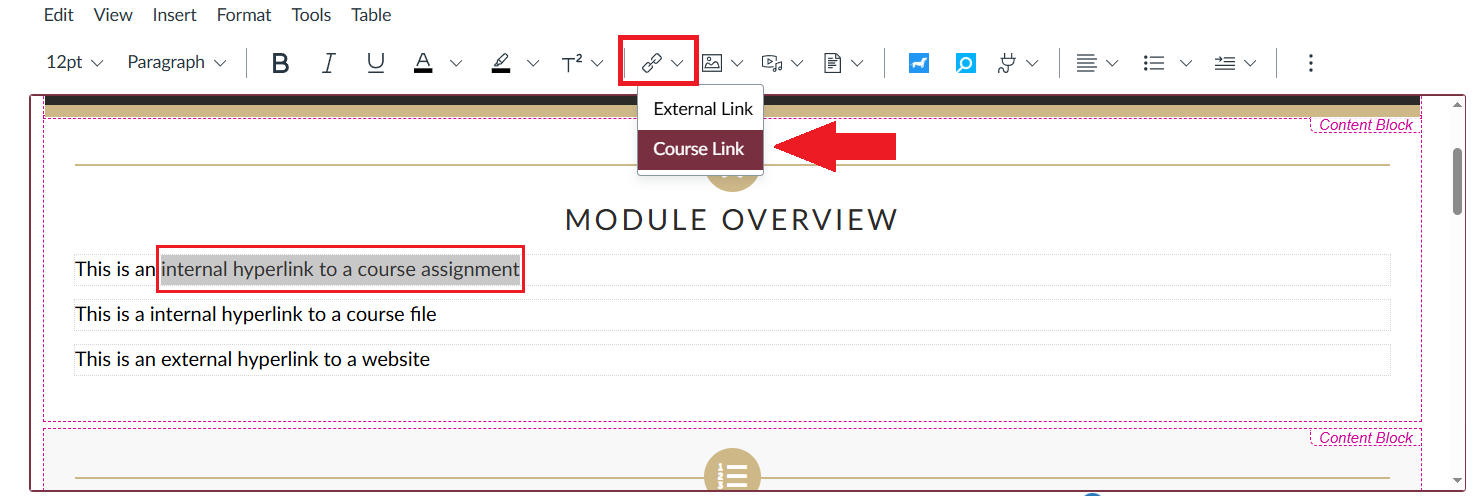
- Highlight the words you want linked to the Canvas content. Then, in the RCE, select the link button and the type of link you want. In this case, we will select Course Link.
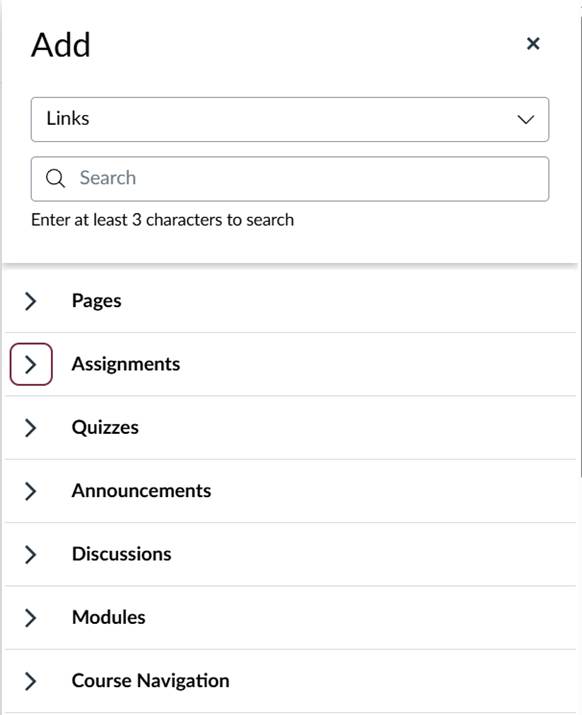
- The Add window will open on the right-hand side with a list of Links found within the Canvas site. You can either search for the specific content or open the various accordion tabs to locate what you are looking for. In this case, we will add an assignment.
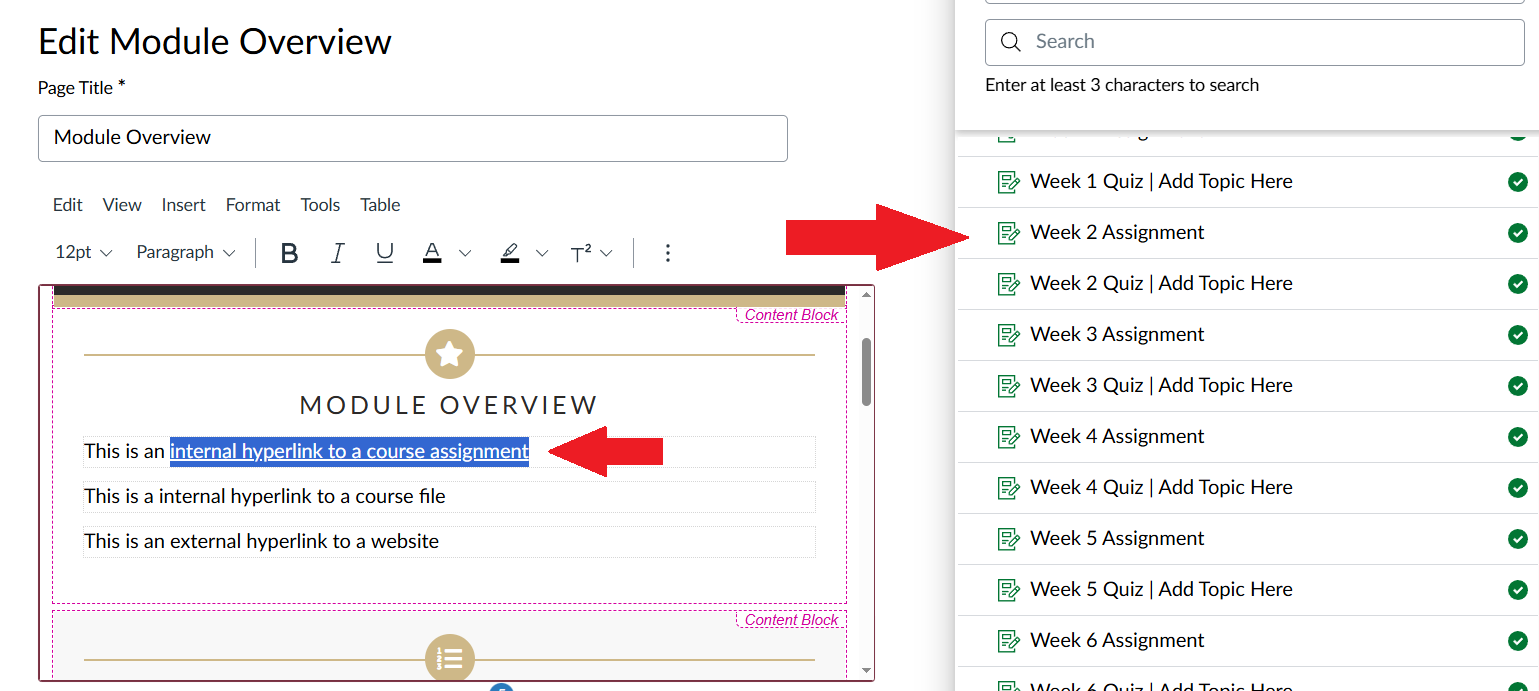
- Select the assignment you wish to add. The title will be underlined, indicating a link has been added.
- Select Save on the bottom of the page. The link will appear in garnet.

Course Links- Files
-
Select Edit on the Canvas page.
- Highlight the words you want linked to the Canvas content. Then, in the RCE, select the link button and the type of link you want. In this case, we will select Course Link.
- As with course content, the Add window will appear on the right-hand side, showing the Canvas content options. This will need to be switched to Files. Click on Links and select Files instead.
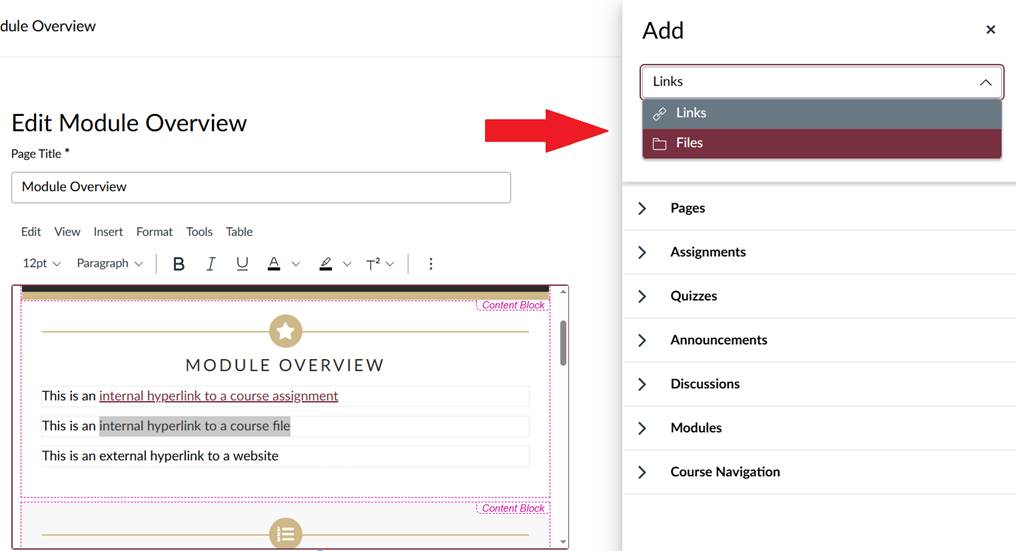
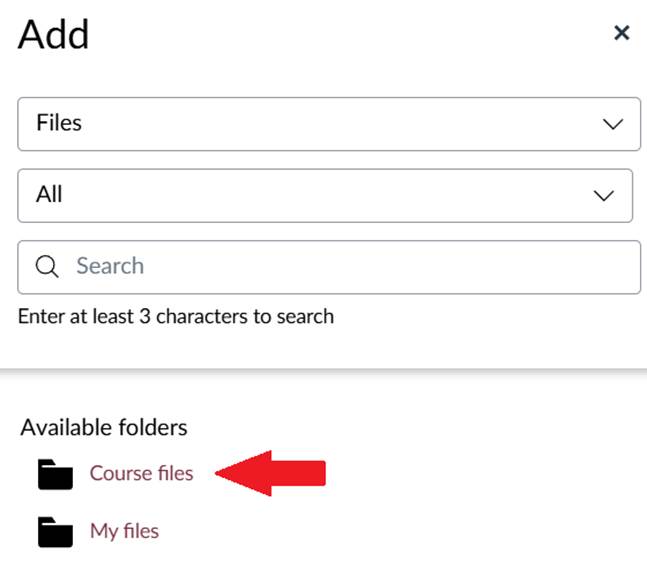
- There will be two available folders. Select Course Files.
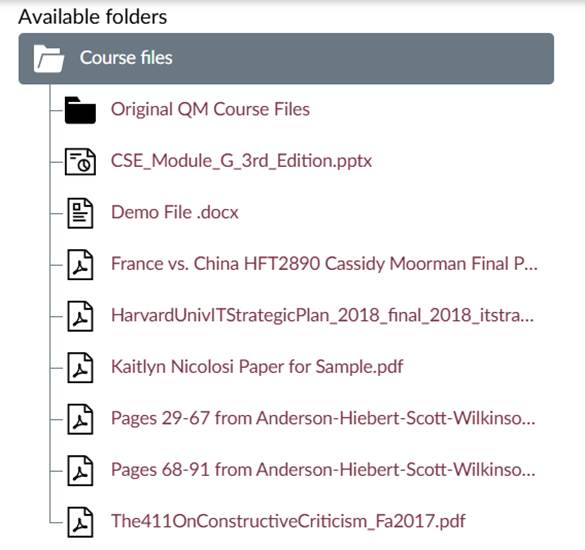
- A list of files and folders in the course will open. Select the desired file.
- Select Save on the bottom of the page. The link will appear in garnet.
External Links
-
Select Edit on the Canvas page.
- Highlight the words you want linked to the canvas content. Then in the editor select the link button and the type of link you want. In this case we will select External link.
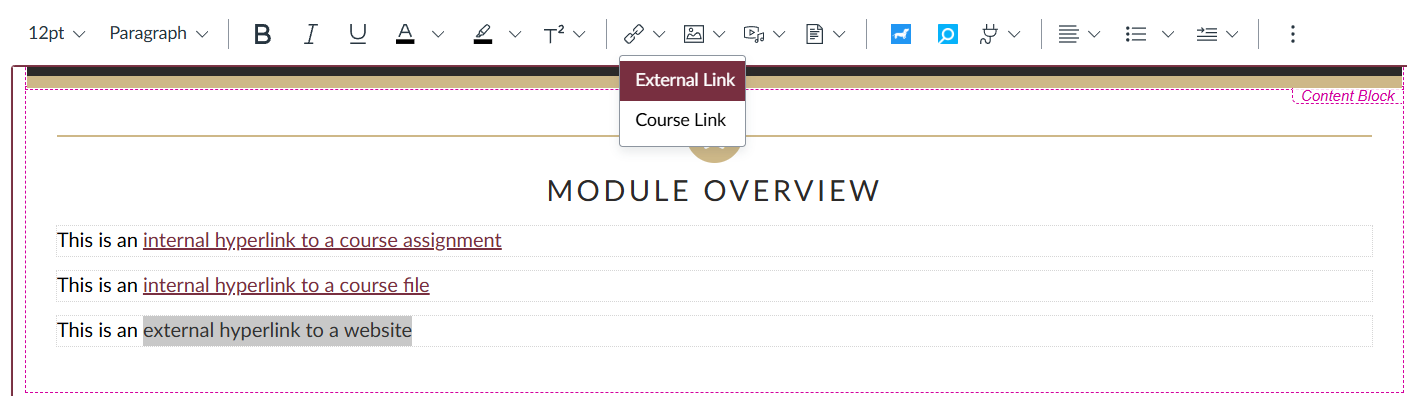
- An Insert Link window will appear. The link box will be empty.
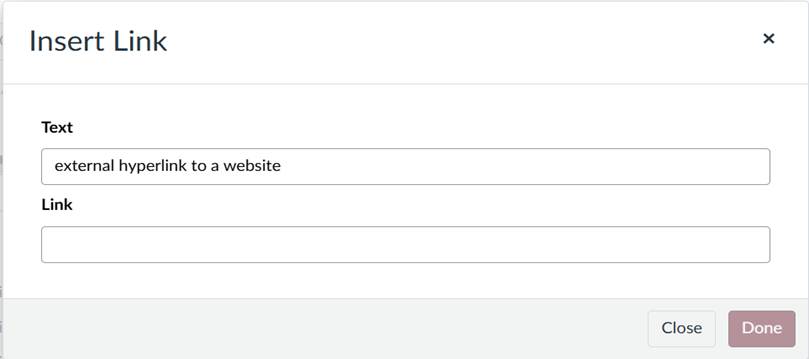
- Copy the URL from another website and paste it into the blank link box. (It should be the full web address, including the https:
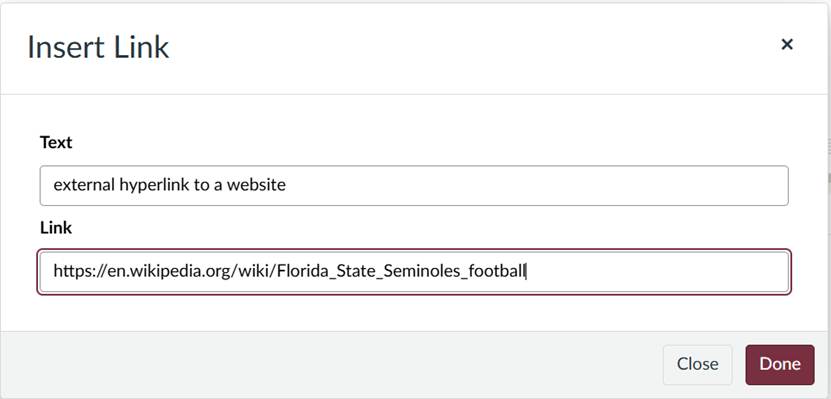
- Select Done and it will show on the page. Select Save on the bottom of the page. The link will appear in garnet.
Removing/Changing Links
If the link is no longer needed, or if the wrong URL was linked, you may want to remove the hyperlink.
- Edit the page.
- Click on the link you wish to remove. It will show Link Options or Remove Link option.
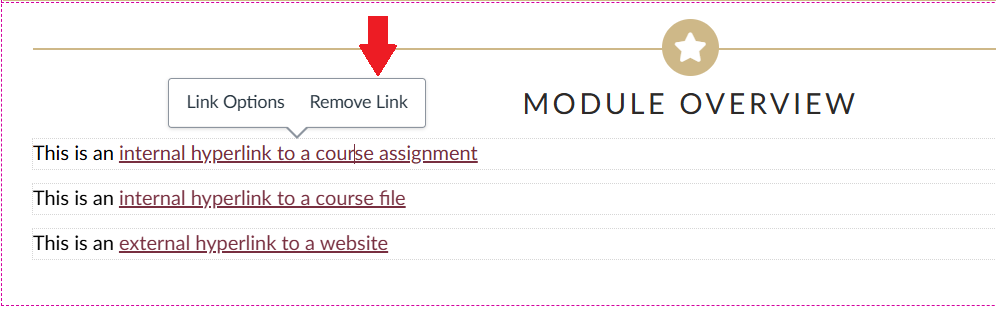
- The text color will revert to its original color, and the underlining will be removed.
- Link Options will allow you to change the Canvas Content, File, or URL if desired.
- Select Save.











