


How do I hide the calculated total column from students in the Gradebook?

Last updated: Apr 15, 2026
13591
views

How do I hide the calculated total column from students in the Gradebook?
In Course Settings, instructors have the option to hide total grades from students. By default, students can see the totals for assignment groups when they view their course grades. However, for courses that use weighted assignment groups, the assginment group totals are always hidden from students.
Hide totals in student grades summary
- Go to your course Settings and scroll down to the last section of settings below "Description:"".
-
Check the box next to
Hide totals in student grades summary.
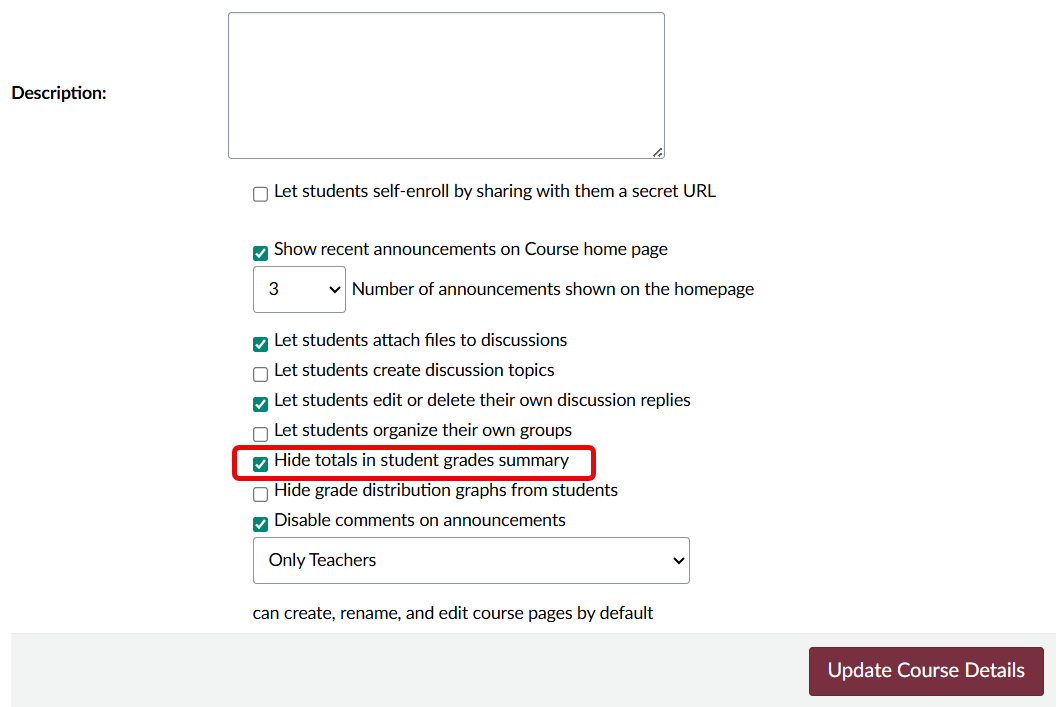
- Click Update Course Details to save the change.











